Summary
Solidigm provides the following tools to update to the latest firmware:
- Solidigm Synergy™ Toolkit (Toolkit)
- Solidigm Storage Tool™ (SST)
| NOTE |
- Review the tools Release Notes to know which version supports the product and has the latest firmware.
- Updates can be performed on primary (boot) or secondary drives.
- Before updating the firmware, back up or copy your files.
- If the update process is interrupted, the SSD might not function properly.
|
Resolution
Solidigm Storage Tool™
The Solidigm Storage Tool™ focuses on Solidigm™ Data Center SSDs.
The CLI is the expected use case, for scripting SSD checks and mass updates.
If your drives are behind a RAID card, see SST RAID Passthrough for possible passthrough support. Otherwise, they may have to be removed and individually updated.
SST: CLI
- Open the CLI as admin. [Help]
- Get the reference to drive. [Help]
- Run the command:
- Read the warning message.
- Type "
Y", press "Enter" to proceed.
NOTE: Leaving the reference out will update all possible drives. |  |
SST: GUI
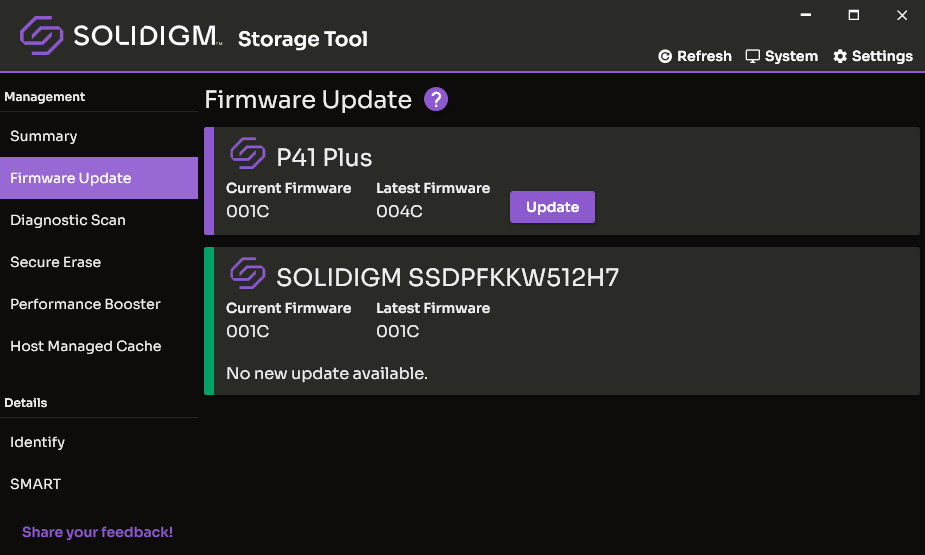
- Launch the "Solidigm Storage Tool™."
- Select "Firmware Update" tab.
- Locate the desired drive.
- 'Current Firmware' is what is currently on the SSD.
- 'Latest Firmware' is newer firmware, if different.
- The update button appears if newer firmware is available.
- Click "Update", to update to the latest firmware.
|  |
Solidigm Synergy™ Toolkit
The Solidigm Synergy™ Toolkit is focused on Solidigm Client NVMe* SSDs.
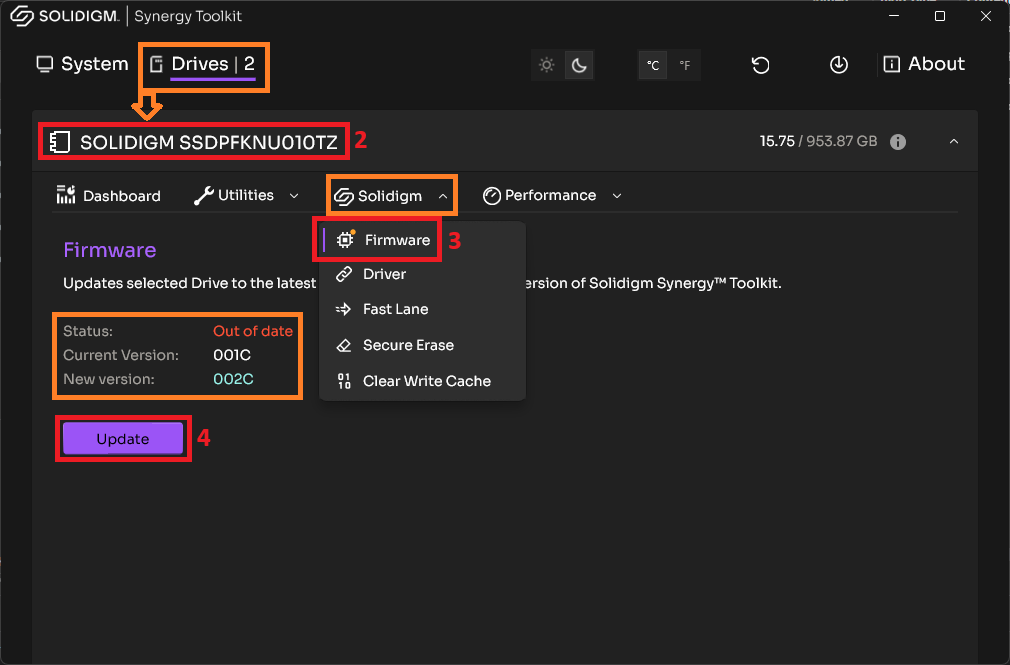
- Launch the "Solidigm Synergy™ Toolkit."
- Locate the desired drive in the Drives tab
- Select "Firmware Update" in the Solidigm dropdown.
- Status declares:
- Up to Date or Out of Date
- 'Current Firmware' is what is currently on the SSD.
- 'Status' is newer firmware, if different.
- The "Update" button appears if newer firmware is available
- Click "Update", to update to the latest firmware.
|  |
Questions? Check out our Community Forum for help.
Issues? Contact Solidigm Customer Support:
[Chinese] [English] [German] [Japanese] [Korean]